BUMERANG · ADS
They are already
looking at that screen.
A guest joining your WiFi spends seconds looking at your sign-in screen. The Ads module turns that screen into a placement: put up a banner, a popup or a strip, set the dates it runs, and watch impressions and clicks accumulate in the panel.
Your cheapest channel is already yours, and it is blank
You pay to advertise your own promotions, while hundreds of guests a day willingly look at a screen you own. The WiFi sign-in screen is not just a hurdle to clear — it is the one placement you never have to buy. A blank welcome screen is an impression spent on nothing.
Where it shows, and how
Run the same message in different formats and places to see which one lands. Format and placement are chosen per ad.
- Format: banner (an image set into the screen), popup (a box brought to the front) or strip (a thin, uninterrupting band)
- Placement: the sign-in screen, the post-login screen and the hotel guest portal
- Several ads can run at once, and each keeps its own counters
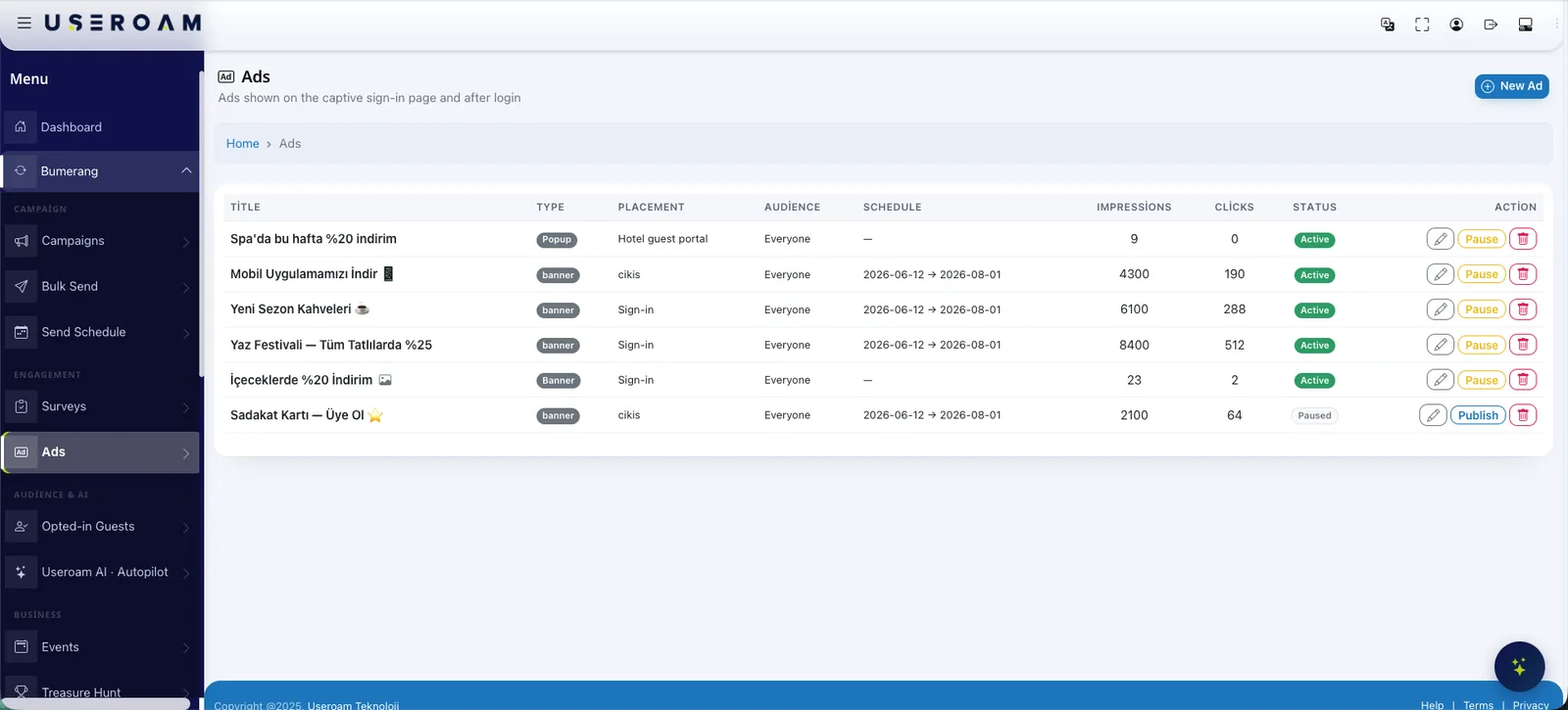
The Ads panel: from live to clicked
Every live and paused ad sits in one list: title, format, placement, run window, impressions and clicks. Pulling an ad or putting it back is one click, and adding a new one does not involve a designer.
Four steps to a placement
Prepare the creative
Upload the image and title of the promotion you want to run.
Pick format and place
Banner, popup or strip; sign-in screen, post-login screen or hotel guest portal.
Set the dates
Give it a start and end date and it drops off by itself when the promotion ends. Leave the dates empty and it runs until you pause it.
Measure
Impressions and clicks build up in the panel. Pause what is not landing and put something else in its place.
A small module with one clear job
Ads is part of the Bumerang suite — no separate install, no second panel to learn.
Where it earns its place
- Malls and retail: a seasonal sale, a prize draw or a new arrival, shown to the customer already in the store
- Hotels: the spa, the à la carte restaurant or an excursion, promoted in the guest portal
- Cafes and restaurants: today's menu, a new seasonal drink, or a nudge to join the loyalty scheme
- Any venue: getting your own mobile app installed — the post-login screen is the right moment for that ask
What does your welcome screen say right now?
Let us put a message on your own sign-in screen in a demo environment and look at it together.
Frequently asked questions
Are guests shown third-party advertising?
No. This is not an ad network: nothing is served from outside and no guest data is passed to any advertising network. The screen shows only what you put in the panel — your own promotion, your own creative.
Does an ad slow the login down?
The message sits inside the welcome and post-login screens the guest already sees, so no extra step is added. The popup format can be dismissed, and banner and strip never interrupt the flow at all.
How many ads can run at once?
Several can run simultaneously and each keeps its own impression and click counters. Pulling an ad does not delete it — it is paused, its counters are kept, and you can publish it again whenever you want.
Who produces the creative?
You upload the image. The ad appears inside your existing captive portal design, so there is no separate page and no separate design process.
Related guides
What Is WiFi Marketing? Turn Guest WiFi into Revenue
WiFi marketing converts the consented data your guest WiFi collects into campaigns, surveys and loyalty — turning one-time visitors into measurable revenue.
What Is a Captive Portal and How Does It Work?
The captive portal is the sign-in screen guests see when they join your WiFi. Here is how it works, what it does for your business and why cloud-based portals win.