PORTAL
Captive portal design
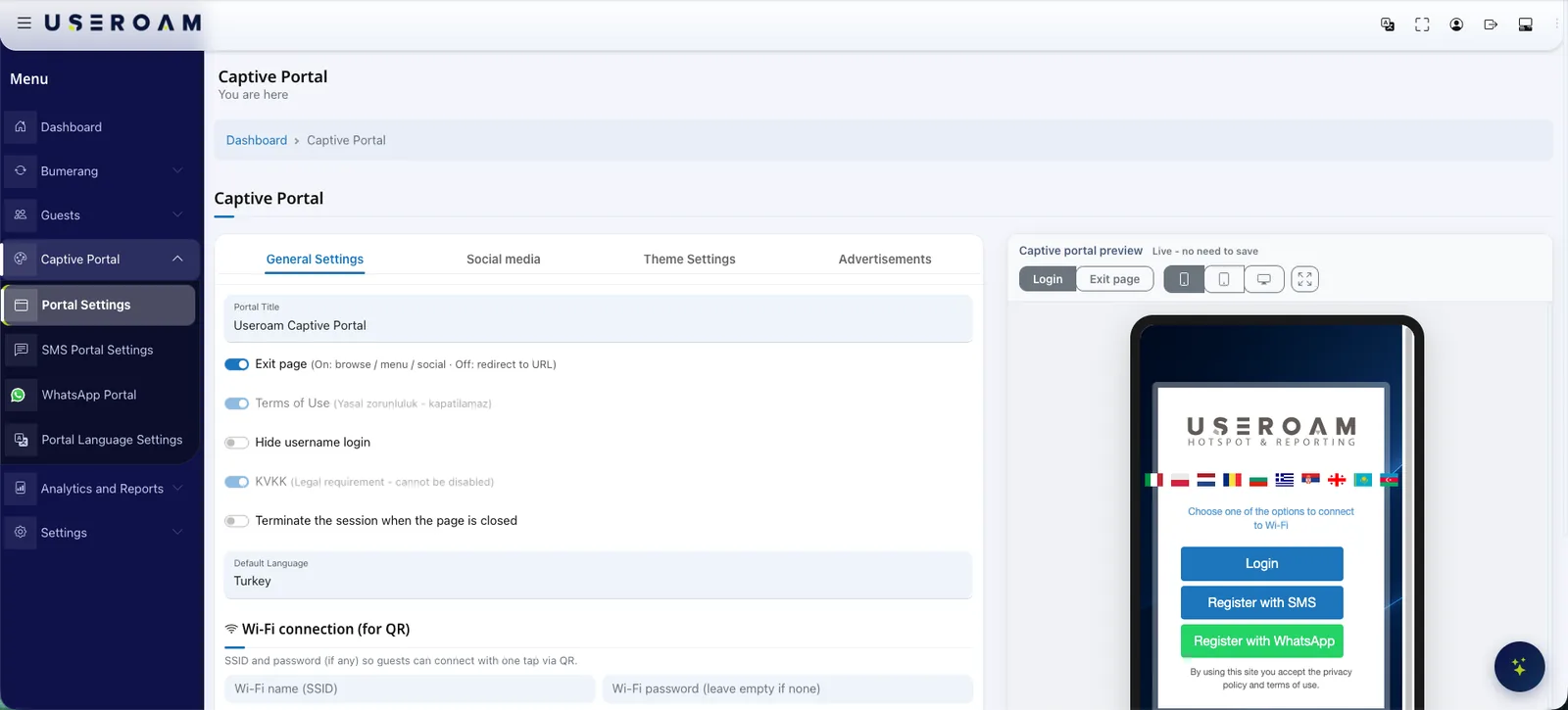
The first screen a guest sees on your network belongs to you. Portal Studio lets you design it with drag and drop, and shows you a live preview before anything is saved.
Why the welcome screen should carry your brand
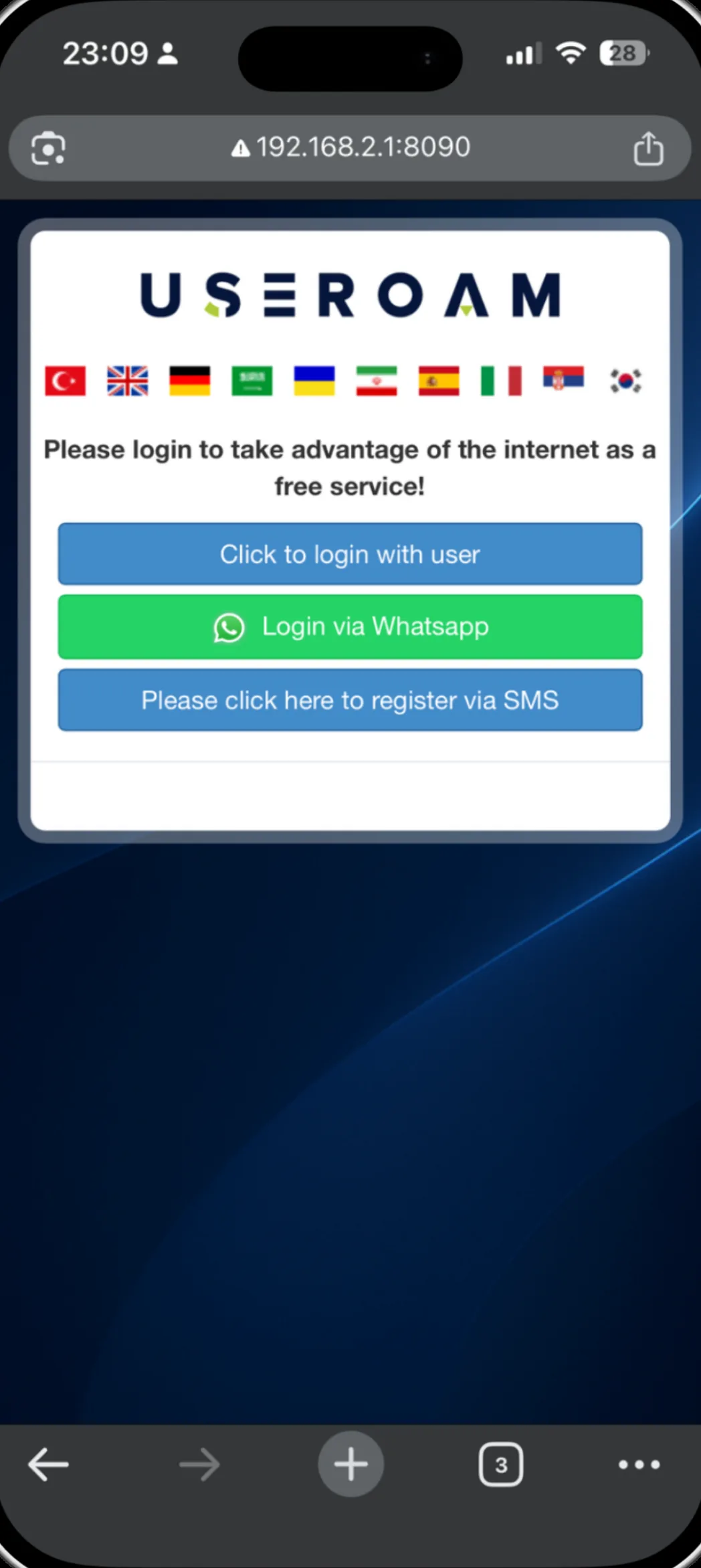
The captive portal is the first digital contact a guest has with your business. A generic login screen wastes that moment; a branded one reminds the guest where they are, shows your campaign and explains the verification step in your own voice. In Useroam you edit this screen yourself, with no technical knowledge required.
For the full picture of the platform: Guest WiFi features
What you can change
Logo and colours
Upload your own logo and set button and text colours to match your brand.
Background
Replace the background image and write the welcome copy in your own words.
Login methods
Decide which verification methods appear and in what order.
Live preview
See the login and post-login screens separately, before saving.
Login and post-login screens preview separately
The portal has two faces: the login screen where the guest verifies, and the welcome screen they see once connected. In the panel you can select and preview each one; button and text colour changes appear instantly. You know exactly what the guest will see before you save.
Good to know
- Portal settings are per device — in multi-site estates every location can have its own screen.
- The WiFi network name and password can be shown as a QR code, so guests never type a password.
- You can hide the login form entirely and leave only vouchers or SMS/WhatsApp verification.
- Welcome copy comes from the portal language table and can be edited separately in 22 languages.
Other guest WiFi features
This capability does not stand alone; these are parts of the same portal, managed from one panel.
See it on your own network.
Let us set up your welcome screen together in a demo environment — and try the login flow on your own phone.
Frequently asked questions
Do I need technical knowledge to change the design?
Can each site have a different screen?
Can I see changes before publishing?
How do guests get the WiFi password?
Related guides
What Is a Captive Portal and How Does It Work?
The captive portal is the sign-in screen guests see when they join your WiFi. Here is how it works, what it does for your business and why cloud-based portals win.
How to Set Up Guest WiFi: A Step-by-Step Guide
A practical, step-by-step guide to building a secure and user-friendly guest WiFi network — from capacity planning and network isolation to authentication and captive portals.
What Is WiFi Marketing? Turn Guest WiFi into Revenue
WiFi marketing converts the consented data your guest WiFi collects into campaigns, surveys and loyalty — turning one-time visitors into measurable revenue.